ELITE League Next Steps

The NEXT STEPS TO COMPLETE FOR ELITE LEAGUE SPRING 2026:
- Registration Verification – Immediately after registering
- Conflict Request Form – Required before team can be approved
- Team Roster – After team approval
- Full League Payment – Due February 13
- Game Day Procedures – Every Game
REGISTRATION VERIFICATION
- Log into GotSport and verify that you have signed up for the correct division.
- Make sure to note the format, and ensure that you are signing up for the correct age division.
- Teams can play up 2 years above their age, and teams CANNOT PLAY DOWN. (EX: a U8 team can only play in U8, U9, or U10 divisions)
- Boys teams MAY NOT play in Girls divisions, but Girls teams may play in Boys divisions.
- After scheduling has begun, changing divisions or formats will not be permitted.
If your team is not in the correct division, please notify our League Director, Nicole James
Conflict request form (CRF)
Required before team can be approved
- All CRFs must be submitted before your team can be approved for the league.
- If you submit a CRF and later need to make changes, please email Nicole James and list any changes you need to make instead of submitting another form.
- You MUST HAVE at least 6 days available.
TEAM ROSTER
- ADD PRIMARY Coach and Manager to the team league roster.
- They must have an approved background check and SafeSport certification every soccer year. Please note that the League Director will not accommodate conflicts if no Primary Coach is listed. Any coach or team manager to be on the coach/player side of the field must be listed on the game report. No more than two (2) adults are allowed on the player’s side of the field.
- ADD registered NTSSA Academy players to the team roster.
- Players must be registered the current soccer season (Fall 2025/Spring 2026). Each player must have a headshot photo and jersey number; the photo should be above the shoulders.
- Coaches and Managers should NOT create new GotSport player profiles for Academy players. Instead, when adding players to the team’s league roster, locate the account they used to register for the Academy with their home association.
- NTSSA Academy Player Registration
- Parents must register their player with any local home soccer association within North Texas, such as FSA, GLASA, PYSA, etc. It is important to note that Managers or Clubs do not register players for the Academy. Please remind parents to use the player’s existing GotSport login credentials when registering. Do not create new player profiles in GotSport for Academy players.
- If players are participating in recreational soccer, they must complete their Academy registration with the same recreational home association.
- For home associations that use ‘paper’ Academy registration forms, the process differs since GotSport does not automatically recognize the player as registered. Parents will need to upload the ‘paper’ registration form to GotSport for NTSSA approval. For instructions on the ‘paper’ form process, please email Tim Garcia at tgarcia@thepitplus.com.
Elite League cannot accept US Club registrations. Teams that field ineligible or unregistered players risk forfeiting any matches in which those players participated.
- Verification and Approval
- Once Coaches, Managers, and players are added, Tim Garcia will verify and approve each team member. After approval, they will be indicated as approved on your league roster with a green check mark. –
- Teams can add NTSSA-registered players to the Elite League roster at any time during the season.
Important: The deadline to add players to the league roster for approval is 12:00 PM on the Friday before the weekend games.
How to Add Players and Coaches to the League Roster
1. Adding a Player to the League Roster
– Go to Team Management and click on your team’s name.
– Once the page opens, click on the “Rosters” tab.
– In the ‘Select Event Roster’ dropdown, choose “Elite League Fall/Spring 20XX Saturday Play.”
– Click on “Add Player.” A new window will appear. Enter the player’s First Name, Last Name, and Date of Birth (DOB), then click “search.”
– When the player appears, click the “Add” button to include them in the roster.
– After adding, the league can approve the player for the roster.
2. Adding a Coach/Manager to the Roster
– Go to Team Management and click on your team’s name.
– Once the page opens, click on the “Rosters” tab.
– In the ‘Select Event Roster’ dropdown, choose “Elite League Spring 20XX Saturday Play.”
– Click on “Add COACH.” A new window will appear. Enter the Coach’s First Name, Last Name, and GotSport email address, then click “search.”
– When the Coach appears, select the appropriate level from the drop-down menu and click the “Add” button to include them in the roster.
– The Coach will be approved once they have completed the USYS background check and SafeSport requirements. This process is the same for adding the Manager.
For any roster-related questions or assistance, please leave a ‘Notification’ on your team account in the league event. If urgent, please email Tim Garcia at tgarcia@thepitplus.com.
FULL TEAM PAYMENT
DUE by Saturday, August 23
- All Team Payments must be completed by Friday, February 13th, 2026. NO EXCEPTIONS!
- The expected team payment amounts are as follows (unless otherwise notified by the League Director):
- 4v4 Teams: $525
- 7v7 Teams: $800
- 9v9 Teams: $950
- Failure to complete team payments by the deadline may result in a $50 late fee or the removal of games from the schedule.
- The multi-team discount will be applied once league registration closes.
To Update Payment Information for an Event as a Coach or Manager:
Step 1: Log in to your GotSport account, click on the “Team Management” tab, and go to “Team Registrations.”
Step 2: Select the “Event” that your team is registered for.
Step 3: Click on the “Billing” tab within the application, then click “Change Payment Method.”
Step 4: Enter your new credit card details and click “Change Payment Method.”
PIT Accounting will then process the league fee payment.
Game Day Procedures
- Player Eligibility:
Only approved and registered NTSSA players are allowed to participate in each match. - Referee Fees:
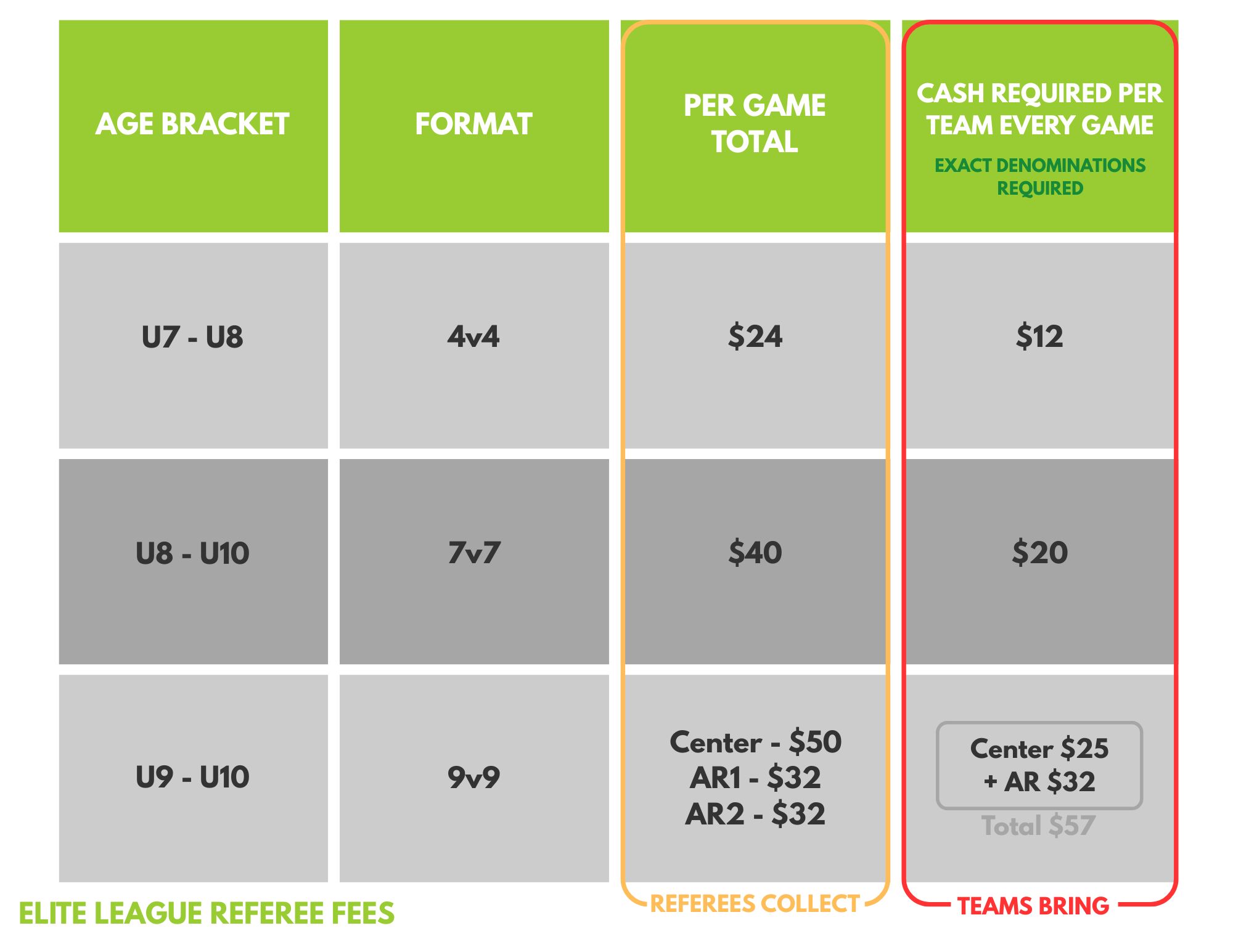
Teams must bring the exact amount of cash required for the referees for each game. Please refer to the red column in the chart below for the specific amount needed. - Game Report:
Each team must provide a game report for every match.This report must include:
– Each player’s name
– Jersey number
– A headshot photo of each player participating in the match
Important: All teams must present a photo of each player on the game report. Handwritten player details or jersey numbers will not be accepted – no exceptions!
- Coaching Staff:
Any coach or team manager sitting on the coach/player side of the field must be listed on the game report. A maximum of two (2) adults is allowed on the players’ side of the field. Score Verification:
Referees will return all game reports along with the match scores to the teams. It is the team’s responsibility to verify that the scores are correctly recorded on the match card BEFORE leaving the pitch. Once the scores are confirmed, the winning team should utilize the QR code at the top of the match card to enter the scores. All necessary information for entering scores is included on the match cards. If an incorrect score is entered, please email Nicole James at nicolej@thepitplus.com. Teams must retain the match card for the entire season in case of disputes.Please note that the QR code will expire after 48 hours.
- Card Issuance:
If a card is issued during the match, the referee will keep the game report. All cards are recorded and tracked for every game played.
How to Print a Photo Match Card
To print your team roster with photos, follow these steps:
Step 1: From your Dashboard, select “Team Management.”
Step 2: On the left, select “Matches.”
Step 3: On the right, click the “Three Dots” and select “Print Match Card.”
Step 4: When the window appears, select “Photo.” This will display your team roster with photos.